# Home assistant add-on: Cloudcommander
[![Donate][donation-badge]](https://www.buymeacoffee.com/alexbelgium)



[](https://www.codacy.com/gh/alexbelgium/hassio-addons/dashboard?utm_source=github.com&utm_medium=referral&utm_content=alexbelgium/hassio-addons&utm_campaign=Badge_Grade)
[](https://github.com/marketplace/actions/super-linter)
[](https://github.com/alexbelgium/hassio-addons/actions/workflows/builder.yaml)
[donation-badge]: https://img.shields.io/badge/Buy%20me%20a%20coffee-%23d32f2f?logo=buy-me-a-coffee&style=flat&logoColor=white
_Thanks to everyone having starred my repo! To star it click on the image below, then it will be on top right. Thanks!_
[](https://github.com/alexbelgium/hassio-addons/stargazers)
Downloads evolution
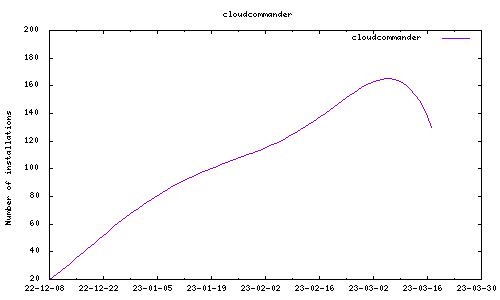 ## About
[Cloud Commander](https://github.com/coderaiser/cloudcmd) is a file manager for the web with console and editor.
This addon is based on the [docker image](https://hub.docker.com/r/coderaiser/cloudcmd).
## Configuration
Webui can be found at `:8000`.
```yaml
localdisks: sda1 #put the hardware name of your drive to mount separated by commas, or its label. ex. sda1, sdb1, MYNAS...
networkdisks: "//SERVER/SHARE" # optional, list of smb servers to mount, separated by commas
cifsusername: "username" # optional, smb username, same for all smb shares
cifspassword: "password" # optional, smb password
smbv1: "bool?" # smb v1
DROPBOX_TOKEN: "str?" # see https://cloudcmd.io/
CUSTOM_OPTIONS: "--name Homeassistant" # custom options from https://cloudcmd.io/
```
## Installation
The installation of this add-on is pretty straightforward and not different in
comparison to installing any other Hass.io add-on.
1. [Add my Hass.io add-ons repository][repository] to your Hass.io instance.
1. Install this add-on.
1. Click the `Save` button to store your configuration.
1. Start the add-on.
1. Check the logs of the add-on to see if everything went well.
[repository]: https://github.com/alexbelgium/hassio-addons
## About
[Cloud Commander](https://github.com/coderaiser/cloudcmd) is a file manager for the web with console and editor.
This addon is based on the [docker image](https://hub.docker.com/r/coderaiser/cloudcmd).
## Configuration
Webui can be found at `:8000`.
```yaml
localdisks: sda1 #put the hardware name of your drive to mount separated by commas, or its label. ex. sda1, sdb1, MYNAS...
networkdisks: "//SERVER/SHARE" # optional, list of smb servers to mount, separated by commas
cifsusername: "username" # optional, smb username, same for all smb shares
cifspassword: "password" # optional, smb password
smbv1: "bool?" # smb v1
DROPBOX_TOKEN: "str?" # see https://cloudcmd.io/
CUSTOM_OPTIONS: "--name Homeassistant" # custom options from https://cloudcmd.io/
```
## Installation
The installation of this add-on is pretty straightforward and not different in
comparison to installing any other Hass.io add-on.
1. [Add my Hass.io add-ons repository][repository] to your Hass.io instance.
1. Install this add-on.
1. Click the `Save` button to store your configuration.
1. Start the add-on.
1. Check the logs of the add-on to see if everything went well.
[repository]: https://github.com/alexbelgium/hassio-addons