Home assistant add-on: Webtop KDE Alpine
I maintain this and other Home Assistant add-ons in my free time: keeping up with upstream changes, HA changes, and testing on real hardware takes a lot of time (and some money). I use around 5-10 of my >110 addons so regularly I install test machines (and purchase some test services such as vpn) that I don't use myself to troubleshoot and improve the addons
If this add-on saves you time or makes your setup easier, I would be very grateful for your support!


Addon informations







Thanks to everyone having starred my repo! To star it click on the image below, then it will be on top right. Thanks!

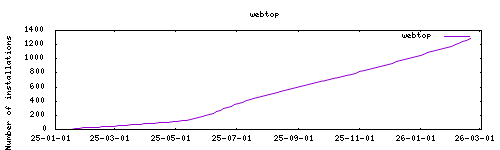
About
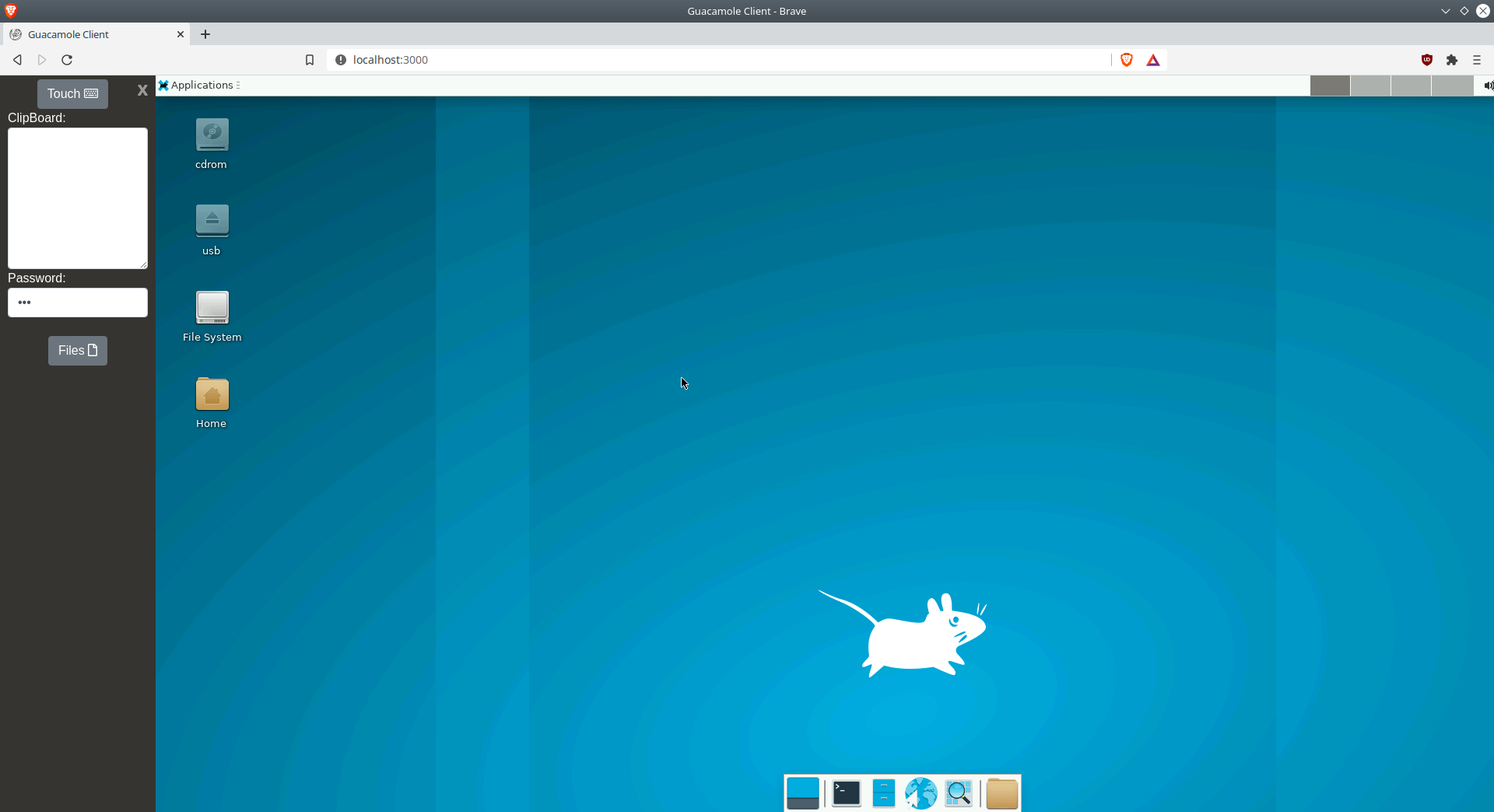
webtop is a full desktop environments accessible via any modern web browser. This addon is based on the docker image https://github.com/linuxserver/docker-webtop
Configuration
Webui can be found with ingress or at http://homeassistant:PORT. The port is by default disabled but can be enabled through the addon options.
By default the image is based around the abc user and we recommend using this user as all of the init/config is based around it. The default password is also abc . If you want to change this password and require authentication when accessing the interface simply issue passwd inside a gui terminal in the webtop. Then when accessing the web interface use the path:
http://localhost:3000/?login=true
Apps installations are not remanent, you need to do it via addon options. Their config, however, is.
If graphics don't work, use the DRINODE feature to select your graphic device.
See all potential ENV variables here : https://docs.linuxserver.io/images/docker-webtop#optional-environment-variables
Options
| Option | Type | Default | Description |
|---|---|---|---|
PGID |
int | 0 |
Group ID for file permissions |
PUID |
int | 0 |
User ID for file permissions |
TZ |
str | Timezone (e.g., Europe/London) |
|
additional_apps |
str | engrampa,libreoffice |
Apps to install (comma-separated) |
DRINODE |
str | /dev/dri/renderD128 |
Graphics device path |
DNS_server |
str | 8.8.8.8 |
Custom DNS server |
KEYBOARD |
str | en-us-qwerty |
Keyboard layout |
PASSWORD |
str | Custom password for web interface | |
data_location |
str | Custom data storage path | |
localdisks |
str | Local drives to mount (e.g., sda1,sdb1). Add a folder after the drive to mount only that folder, e.g. MYNAS/public mounts only that folder, at /mnt/MYNAS/public. Folder mounts need an add-on version released after 2026-09-19. |
|
networkdisks |
str | SMB shares to mount (e.g., //SERVER/SHARE) |
|
cifsusername |
str | SMB username for network shares | |
cifspassword |
str | SMB password for network shares | |
cifsdomain |
str | SMB domain for network shares |
Example Configuration
PGID: 1000
PUID: 1000
TZ: "Europe/London"
additional_apps: "firefox,gimp,vlc"
DRINODE: "/dev/dri/card0"
KEYBOARD: "fr-fr-azerty"
localdisks: "sda1,sdb1"
networkdisks: "//192.168.1.100/media"
cifsusername: "mediauser"
cifspassword: "password123"
cifsdomain: "workgroup"
Mounting Drives
This addon supports mounting both local drives and remote SMB shares:
- Local drives: See Mounting Local Drives in Addons
- Remote shares: See Mounting Remote Shares in Addons
Custom Scripts and Environment Variables
This addon supports custom script execution and environment variable injection:
- Custom scripts: See Running Custom Scripts in Addons
- env_vars option: Use the add-on
env_varsoption to pass extra environment variables (uppercase or lowercase names). See https://github.com/alexbelgium/hassio-addons/wiki/Add-Environment-variables-to-your-Addon-2 for details.
Additional Resources
See all potential environment variables: https://docs.linuxserver.io/images/docker-webtop#optional-environment-variables
Installation
The installation of this add-on is pretty straightforward and not different in comparison to installing any other add-on.
- Add my add-ons repository to your home assistant instance (in supervisor addons store at top right, or click button below if you have configured my HA)

- Install this add-on.
- Click the
Savebutton to store your configuration. - Set the add-on options to your preferences
- Start the add-on.
- Check the logs of the add-on to see if everything went well.
- Open the webUI and adapt the software options
Support
Create an issue on github
Illustration