mirror of
https://github.com/alexbelgium/hassio-addons.git
synced 2026-01-11 10:21:02 +01:00

78 lines
4.6 KiB
Markdown
78 lines
4.6 KiB
Markdown
# Home assistant add-on: jellyfin
|
|
|
|
[![Donate][paypal-badge]](https://www.paypal.com/donate/?hosted_button_id=DZFULJZTP3UQA)
|
|
[![Donate][donation-badge]](https://www.buymeacoffee.com/alexbelgium)
|
|
|
|

|
|

|
|

|
|
|
|
[](https://www.codacy.com/gh/alexbelgium/hassio-addons/dashboard?utm_source=github.com&utm_medium=referral&utm_content=alexbelgium/hassio-addons&utm_campaign=Badge_Grade)
|
|
[](https://github.com/alexbelgium/hassio-addons/actions/workflows/weekly-supelinter.yaml)
|
|
[](https://github.com/alexbelgium/hassio-addons/actions/workflows/onpush_builder.yaml)
|
|
|
|
[donation-badge]: https://img.shields.io/badge/Buy%20me%20a%20coffee%20(no%20paypal)-%23d32f2f?logo=buy-me-a-coffee&style=flat&logoColor=white
|
|
[paypal-badge]: https://img.shields.io/badge/Buy%20me%20a%20coffee%20with%20Paypal-0070BA?logo=paypal&style=flat&logoColor=white
|
|
|
|
_Thanks to everyone having starred my repo! To star it click on the image below, then it will be on top right. Thanks!_
|
|
|
|
[](https://github.com/alexbelgium/hassio-addons/stargazers)
|
|
|
|
|
|
|
|
## About
|
|
|
|
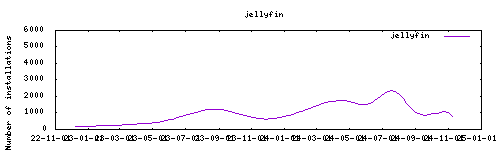
[jellyfin](https://jellyfin.media/) organizes video, music, live TV, and photos from personal media libraries and streams them to smart TVs, streaming boxes and mobile devices. This container is packaged as a standalone jellyfin Media Server.
|
|
|
|
This addon is based on the [docker image](https://github.com/linuxserver/docker-jellyfin) from linuxserver.io.
|
|
|
|
## Configuration
|
|
|
|
### Addon config
|
|
|
|
Webui can be found at `<your-ip>:8096`.
|
|
|
|
```yaml
|
|
PGID: user
|
|
GPID: user
|
|
TZ: timezone
|
|
localdisks: sda1 #put the hardware name of your drive to mount separated by commas, or its label. ex. sda1, sdb1, MYNAS...
|
|
networkdisks: "//SERVER/SHARE" # optional, list of smb servers to mount, separated by commas
|
|
cifsusername: "username" # optional, smb username, same for all smb shares
|
|
cifspassword: "password" # optional, smb password
|
|
cifsdomain: "domain" # optional, allow setting the domain for the smb share
|
|
DOCKER_MODS: linuxserver/mods:jellyfin-opencl-intel|linuxserver/mods:jellyfin-amd|linuxserver/mods:jellyfin-rffmpeg # Install graphic drivers
|
|
```
|
|
|
|
### Enable ssl
|
|
#### Creating the PFX certificate file first
|
|
1. This part assumes you already have SSL certs in PEM format using the Let's Encrypt add on
|
|
2. Run this command `openssl pkcs12 -export -in fullchain.pem -inkey private_key.pem -passout pass: -out server.pfx`
|
|
3. Set the permission using `chmod 0700 server.pfx`
|
|
> Note:
|
|
> The above command creates a PFX file without a password, you can fill in a password with `-passout pass:"your-password"`
|
|
> but will also have to provide `your-password` to Jellyfin's configuration
|
|
|
|
#### Automating the PFX certificate
|
|
|
|
#### Jellyfin configuration
|
|
1. From the sidebar, click on `Administration` -> `Dashboard`
|
|
2. Under `Networking`, `Server Address Settings`, tick `Enable HTTPS`
|
|
3. Under `HTTPS Settings`, tick `Require HTTPS`
|
|
4. For `Custom SSL certificate path:`, point it to your PFX file and fill in the `Certificate password` if required
|
|
5. Scroll to the bottom and `Save`
|
|
|
|
## Installation
|
|
|
|
The installation of this add-on is pretty straightforward and not different in
|
|
comparison to installing any other Hass.io add-on.
|
|
|
|
1. [Add my Hass.io add-ons repository][repository] to your Hass.io instance.
|
|
1. Install this add-on.
|
|
1. Click the `Save` button to store your configuration.
|
|
1. Start the add-on.
|
|
1. Check the logs of the add-on to see if everything went well.
|
|
1. Carefully configure the add-on to your preferences, see the official documentation for for that.
|
|
|
|
[repository]: https://github.com/alexbelgium/hassio-addons
|