mirror of
https://github.com/alexbelgium/hassio-addons.git
synced 2026-03-05 12:48:16 +01:00
 8a0f15413c
Add the "Add repository to my Home Assistant" blue button to all
addon README files that were missing it. This makes it easier for
new HA users to add the repository with a single click.

Updated 59 addon READMEs:
- 51 with standard Installation section format
- 8 with non-standard or missing Installation sections

Co-authored-by: alexbelgium <44178713+alexbelgium@users.noreply.github.com>
126 lines
7.3 KiB
Markdown
126 lines
7.3 KiB
Markdown
# Home assistant add-on: Filebrowser
|
|
|
|
|
|
I maintain this and other Home Assistant add-ons in my free time: keeping up with upstream changes, HA changes, and testing on real hardware takes a lot of time (and some money). I use around 5-10 of my >110 addons so regularly I install test machines (and purchase some test services such as vpn) that I don't use myself to troubleshoot and improve the addons
|
|
|
|
If this add-on saves you time or makes your setup easier, I would be very grateful for your support!
|
|
|
|
[![Buy me a coffee][donation-badge]](https://www.buymeacoffee.com/alexbelgium)
|
|
[![Donate via PayPal][paypal-badge]](https://www.paypal.com/donate/?hosted_button_id=DZFULJZTP3UQA)
|
|
|
|
## Addon informations
|
|
|
|

|
|

|
|

|
|
|
|
[](https://www.codacy.com/gh/alexbelgium/hassio-addons/dashboard?utm_source=github.com&utm_medium=referral&utm_content=alexbelgium/hassio-addons&utm_campaign=Badge_Grade)
|
|
[](https://github.com/alexbelgium/hassio-addons/actions/workflows/weekly-supelinter.yaml)
|
|
[](https://github.com/alexbelgium/hassio-addons/actions/workflows/onpush_builder.yaml)
|
|
|
|
[donation-badge]: https://img.shields.io/badge/Buy%20me%20a%20coffee-%23d32f2f?logo=buy-me-a-coffee&style=flat&logoColor=white
|
|
[paypal-badge]: https://img.shields.io/badge/Donate%20via%20PayPal-0070BA?logo=paypal&style=flat&logoColor=white
|
|
|
|
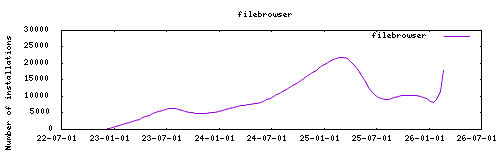
_Thanks to everyone having starred my repo! To star it click on the image below, then it will be on top right. Thanks!_
|
|
|
|
[](https://github.com/alexbelgium/hassio-addons/stargazers)
|
|
|
|
|
|
|
|
## About
|
|
|
|
Web-based file management interface that provides a secure way to browse, upload, download, edit and manage files on your Home Assistant system. Filebrowser offers a clean, modern interface for handling your files through a web browser, with support for multiple file formats, preview capabilities, and comprehensive file operations.
|
|
|
|
This addon is based on the [docker image](https://hub.docker.com/r/filebrowser/filebrowser) from the official Filebrowser project.
|
|
|
|
## Installation
|
|
|
|
The installation of this add-on is pretty straightforward and not different in
|
|
comparison to installing any other Home Assistant add-on.
|
|
|
|
1. Add my add-ons repository to your home assistant instance (in supervisor addons store at top right, or click button below if you have configured my HA)
|
|
[](https://my.home-assistant.io/redirect/supervisor_add_addon_repository/?repository_url=https%3A%2F%2Fgithub.com%2Falexbelgium%2Fhassio-addons)
|
|
1. Install this add-on.
|
|
1. Click the `Save` button to store your configuration.
|
|
1. Start the add-on.
|
|
1. Check the logs of the add-on to see if everything went well.
|
|
1. Access the web UI through the sidebar or at `<your-ip>:8071`.
|
|
|
|
## Configuration
|
|
|
|
The web UI can be found at `<your-ip>:8071` or through the Home Assistant sidebar when using Ingress.
|
|
|
|
**Default credentials:**
|
|
- Username: `admin`
|
|
- Password: `admin`
|
|
|
|
**Important:** Change the default credentials immediately after first login for security.
|
|
|
|
### Options
|
|
|
|
| Option | Type | Default | Description |
|
|
|--------|------|---------|-------------|
|
|
| `ssl` | bool | `false` | Enable HTTPS for web interface |
|
|
| `certfile` | str | `fullchain.pem` | SSL certificate file (in `/ssl/`) |
|
|
| `keyfile` | str | `privkey.pem` | SSL private key file (in `/ssl/`) |
|
|
| `NoAuth` | bool | `true` | Disable authentication (resets database when changed) |
|
|
| `disable_thumbnails` | bool | `true` | Disable thumbnail generation for improved performance |
|
|
| `base_folder` | str | _(optional)_ | Root folder for file browser (defaults to all mapped folders) |
|
|
| `localdisks` | str | _(optional)_ | Local drives to mount (e.g., `sda1,sdb1,MYNAS`) |
|
|
| `networkdisks` | str | _(optional)_ | SMB shares to mount (e.g., `//SERVER/SHARE`) |
|
|
| `cifsusername` | str | _(optional)_ | SMB username for network shares |
|
|
| `cifspassword` | str | _(optional)_ | SMB password for network shares |
|
|
| `cifsdomain` | str | _(optional)_ | SMB domain for network shares |
|
|
|
|
### Example Configuration
|
|
|
|
```yaml
|
|
ssl: true
|
|
certfile: "fullchain.pem"
|
|
keyfile: "privkey.pem"
|
|
NoAuth: false
|
|
disable_thumbnails: false
|
|
base_folder: "/share"
|
|
localdisks: "sda1,sdb1"
|
|
networkdisks: "//192.168.1.100/files,//nas.local/documents"
|
|
cifsusername: "fileuser"
|
|
cifspassword: "password123"
|
|
cifsdomain: "workgroup"
|
|
```
|
|
|
|
## Setup
|
|
|
|
1. Start the add-on and wait for it to initialize.
|
|
1. Access the web interface through the Home Assistant sidebar or at `<your-ip>:8071`.
|
|
1. Log in using the default credentials:
|
|
- Username: `admin`
|
|
- Password: `admin`
|
|
1. **Important:** Immediately change the default password by clicking on "Settings" > "User Management".
|
|
1. Configure your preferred settings through the web interface.
|
|
1. If authentication is disabled (`NoAuth: true`), the login screen will be bypassed.
|
|
|
|
### Mounting Drives
|
|
|
|
This addon supports mounting both local drives and remote SMB shares:
|
|
|
|
- **Local drives**: See [Mounting Local Drives in Addons](https://github.com/alexbelgium/hassio-addons/wiki/Mounting-Local-Drives-in-Addons)
|
|
- **Remote shares**: See [Mounting Remote Shares in Addons](https://github.com/alexbelgium/hassio-addons/wiki/Mounting-remote-shares-in-Addons)
|
|
|
|
### Custom Scripts and Environment Variables
|
|
|
|
This addon supports custom scripts and environment variables through the `addon_config` mapping:
|
|
|
|
- **Custom scripts**: See [Running Custom Scripts in Addons](https://github.com/alexbelgium/hassio-addons/wiki/Running-custom-scripts-in-Addons)
|
|
- **env_vars option**: Use the add-on `env_vars` option to pass extra environment variables (uppercase or lowercase names). See https://github.com/alexbelgium/hassio-addons/wiki/Add-Environment-variables-to-your-Addon-2 for details.
|
|
|
|
## Support
|
|
|
|
Create an issue on GitHub, or ask on the [Home Assistant Community thread](https://community.home-assistant.io/t/home-assistant-addon-filebrowser/282108/3).
|
|
|
|
[repository]: https://github.com/alexbelgium/hassio-addons
|
|
[aarch64-shield]: https://img.shields.io/badge/aarch64-yes-green.svg
|
|
[amd64-shield]: https://img.shields.io/badge/amd64-yes-green.svg
|
|
[armv7-shield]: https://img.shields.io/badge/armv7-yes-green.svg
|
|
|
|
|