16 KiB
⚠ Open Request : ✨ [REQUEST] Birdnet-Go (opened 2024-05-07) by @matthew73210
⚠ Open Issue : 🐛 [Birdnet-go] Queue is full! (opened 2024-06-24) by @thor0215
Home assistant add-on: Birdnet-Go
-%23d32f2f?logo=buy-me-a-coffee&style=flat&logoColor=white)






Thanks to everyone having starred my repo! To star it click on the image below, then it will be on top right. Thanks!

About
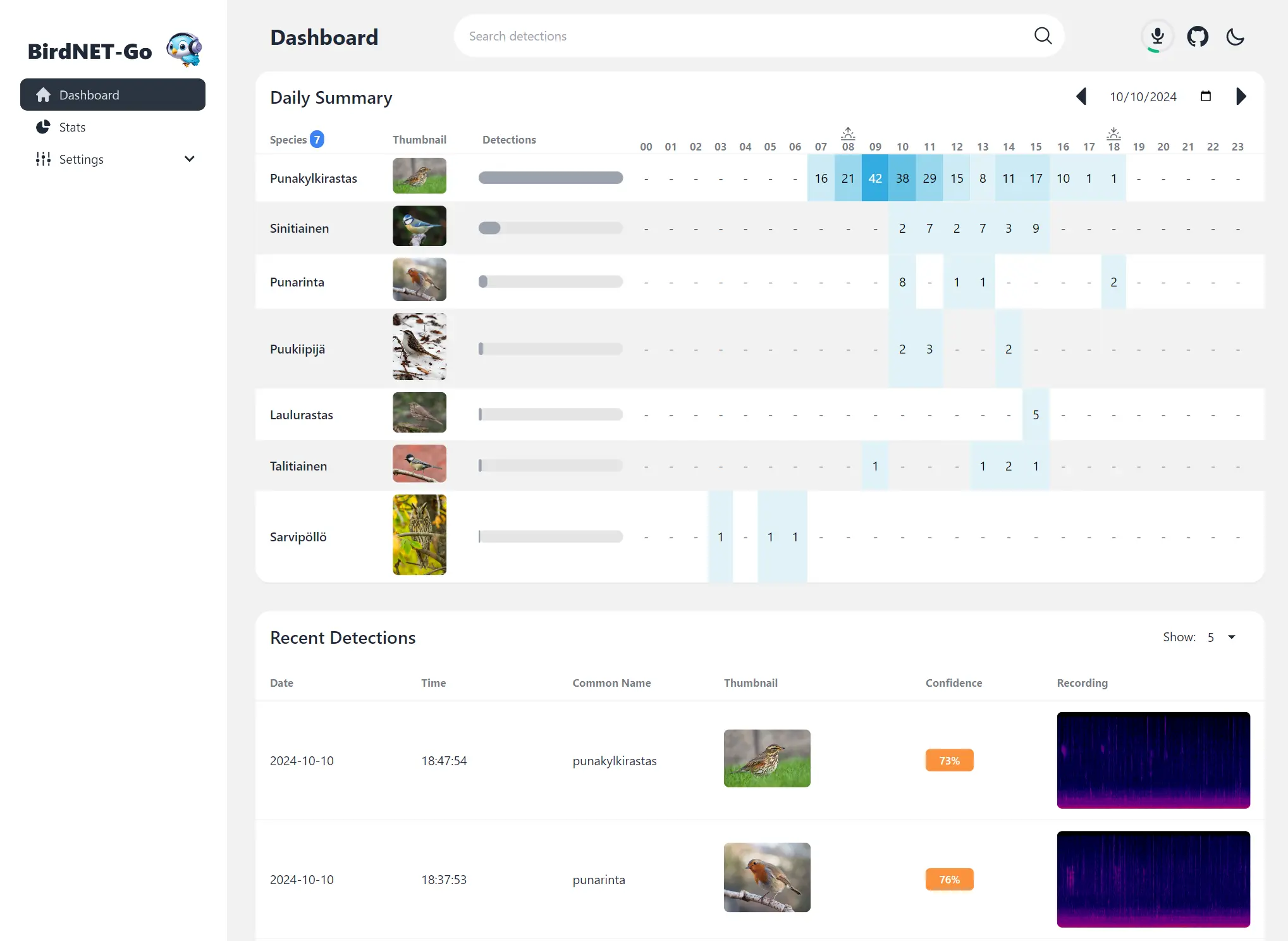
BirdNET-Go is an AI solution for continuous avian monitoring and identification developed by @tphakala
This addon is based on their docker image.
Configuration
Install, then start the addon a first time. Webui can be found at http://homeassistant:8080. You'll need a microphone : either use one connected to HA or the audio stream of a rstp camera.
The audio clips folder can be stored on an external or SMB drive by mounting it from the addon options, then specifying the path instead of "clips/". For example, "/mnt/NAS/Birdnet/"
Options can be configured through three ways :
- Addon options
ALSA_CARD : number of the card (0 or 1 usually), see https://github.com/tphakala/birdnet-go/blob/main/doc/installation.md#deciding-alsa_card-value
TZ: Etc/UTC specify a timezone to use, see https://en.wikipedia.org/wiki/List_of_tz_database_time_zones#List
COMMAND : realtime --rtsp url # allows to provide arguments to birdnet-go
-
Config.yaml Additional variables can be configured using the config.yaml file found in /config/db21ed7f_birdnet-go/config.yaml using the Filebrowser addon
-
Config_env.yaml Additional environment variables can be configured there
Installation
The installation of this add-on is pretty straightforward and not different in comparison to installing any other add-on.
- Add my add-ons repository to your home assistant instance (in supervisor addons store at top right, or click button below if you have configured my HA)

- Install this add-on.
- Click the
Savebutton to store your configuration. - Set the add-on options to your preferences
- Start the add-on.
- Check the logs of the add-on to see if everything went well.
- Open the webUI and adapt the software options
Integration with HA1
Birdnet-Go can be integrated with Home Assistant using a MQTT Broker.
Birdnet-Go Events Sensor
Your Home Assistant must be setup with MQTT and Birdnet-Go MQTT integration must be enabled. Modify the Birdnet-Go config.yaml file to enable MQTT. If you are using the Mosquitto Broker addon, you will see a log message during the Birdnet-Go startup showing the internal MQTT server details needed for configuration similar to below.
Birdnet-Go log snipped showing MQTT details:
/etc/cont-init.d/33-mqtt.sh: executing
---
MQTT addon is active on your system! Add the MQTT details below to the Birdnet-go config.yaml :
MQTT user : addons
MQTT password : Ri5ahV1aipeiw0aelerooteixai5ohtoeNg6oo3mo0thi5te0phiezuge4Phoore
MQTT broker : tcp://core-mosquitto:1883
---

Edit this section of config.yaml found in addon_configs/db21ed7f_birdnet-go/:
    mqtt:
        enabled: true # true to enable MQTT
        broker: tcp://core-mosquitto:1883 # MQTT (tcp://host:port)
        topic: birdnet # MQTT topic
        username: addons # MQTT username
        password: xxxxxxxxxxxxxxxxxxxxxxxxxxxxxxxxxxxxxxxxxxxxxxx # MQTT password
Then create a new template sensor using the configuration below.
- trigger:
    - platform: mqtt
      topic: "birdnet"
    - platform: time
      at: "00:00:00"
      id: reset
  sensor:
    - unique_id: c893533c-3c06-4ebe-a5bb-da833da0a947
      name: BirdNET-Go Events
      state: >
        {% if trigger.id == 'reset' %}
          {{ now() }}
        {% else %}
          {{ today_at(trigger.payload_json.Time) }}
        {% endif %}
      attributes:
        bird_events: >
          {% if trigger.id == 'reset' %}
            {{ [] }}
          {% else %}
            {% set time = trigger.payload_json.Time %}
            {% set name = trigger.payload_json.CommonName %}
            {% set confidence = trigger.payload_json.Confidence|round(2) * 100 ~ '%' %}
            {% set current = this.attributes.get('bird_events', []) %}
            {% set new = dict(time=time, name=name, confidence=confidence) %}
            {{ current + [new] }}
          {% endif %}
Birdnet-Go Dashboard Cards
There are two versions listed below. One will link the Bird Name to Wikipedia the other one will link to All About Birds. You will need to modify the Confidence link to match your Home Assistant setup.
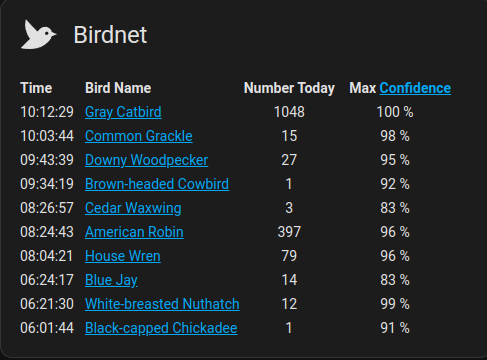
type: markdown
title: Birdnet (Wikipedia)
content: >-
  Time|  Bird Name|Number Today|    Max
  [Confidence](http://192.168.1.25:8081/)

  :---|:---|:---:|:---:

  {%- set t = now() %}

  {%- set bird_list = state_attr('sensor.birdnet_go_events','bird_events') |
  sort(attribute='time', reverse=true) | map(attribute='name') | unique | list
  %}

  {%- set bird_objects = state_attr('sensor.birdnet_go_events','bird_events') |
  sort(attribute='time', reverse=true) %}

  {%- for thisbird in bird_list or [] %}

  {%- set ubird = ((bird_objects | selectattr("name", "equalto", thisbird)) |
  list)[0] %}

  {%- set ubird_count = ((bird_objects | selectattr("name", "equalto",
  thisbird)) | list) | length %}

  {%- set ubird_max_confidence = ((bird_objects | selectattr("name", "equalto",
  thisbird)) | map(attribute='confidence') | map('replace', '%', '') |
  map('float') | max | round(0)) %}

  {%- if ubird_max_confidence > 70 %}

  {{ubird.time}}
  |  [{{ubird.name}}](https://en.wikipedia.org/wiki/{{ubird.name |
  replace(' ', '_')}}) | {{ubird_count}} | {{ ubird_max_confidence }} %

  {%- endif %}

  {%- endfor %}
card_mod:
  style:
    $: |
      .card-header {
        display: flex !important;
        align-items: center;
      }
      .card-header:before {
        content: url("data:image/svg+xml,%3Csvg xmlns='http://www.w3.org/2000/svg' viewBox='0 0 24 24'%3E%3Cpath fill='%23000' d='m23 11.5l-3.05-1.13c-.26-1.15-.91-1.81-.91-1.81a4.19 4.19 0 0 0-5.93 0l-1.48 1.48L5 3c-1 4 0 8 2.45 11.22L2 19.5s8.89 2 14.07-2.05c2.76-2.16 3.38-3.42 3.77-4.75zm-5.29.22c-.39.39-1.03.39-1.42 0a.996.996 0 0 1 0-1.41c.39-.39 1.03-.39 1.42 0s.39 1.02 0 1.41'/%3E%3C/svg%3E");
        height: 42px;
        width: 42px;
        margin-top: 0px;
        padding-left: 0px;
        padding-right: 14px;
      }
      @media (prefers-color-scheme: dark) {
        .card-header:before {
          content: url("data:image/svg+xml,%3Csvg xmlns='http://www.w3.org/2000/svg' viewBox='0 0 24 24'%3E%3Cpath fill='%23E1E1E1' d='m23 11.5l-3.05-1.13c-.26-1.15-.91-1.81-.91-1.81a4.19 4.19 0 0 0-5.93 0l-1.48 1.48L5 3c-1 4 0 8 2.45 11.22L2 19.5s8.89 2 14.07-2.05c2.76-2.16 3.38-3.42 3.77-4.75zm-5.29.22c-.39.39-1.03.39-1.42 0a.996.996 0 0 1 0-1.41c.39-.39 1.03-.39 1.42 0s.39 1.02 0 1.41'/%3E%3C/svg%3E");
          height: 42px;
          width: 42px;
          margin-top: 0px;
          padding-left: 0px;
          padding-right: 14px;
        }
      }
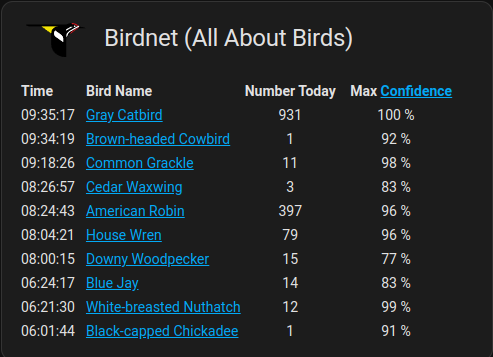
type: markdown
title: Birdnet (All About Birds)
content: >-
  Time|  Bird Name|Number Today|    Max
  [Confidence](http://ip_address_of_HA:8080/)

  :---|:---|:---:|:---:

  {%- set t = now() %}

  {%- set bird_list = state_attr('sensor.birdnet_go_events','bird_events') |
  sort(attribute='time', reverse=true) | map(attribute='name') | unique | list
  %}

  {%- set bird_objects = state_attr('sensor.birdnet_go_events','bird_events') |
  sort(attribute='time', reverse=true) %}

  {%- for thisbird in bird_list or [] %}

  {%- set ubird = ((bird_objects | selectattr("name", "equalto", thisbird)) |
  list)[0] %}

  {%- set ubird_count = ((bird_objects | selectattr("name", "equalto",
  thisbird)) | list) | length %}

  {%- set ubird_max_confidence = ((bird_objects | selectattr("name", "equalto",
  thisbird)) | map(attribute='confidence') | map('replace', '%', '') |
  map('float') | max | round(0)) %}

  {%- if ubird_max_confidence > 70 %}

  {{ubird.time}}
  |  [{{ubird.name}}](https://www.allaboutbirds.org/guide/{{ubird.name
  | replace(' ', '_')}}) | {{ubird_count}} | {{ ubird_max_confidence }} %

  {%- endif %}

  {%- endfor %}
card_mod:
  style:
    $: |
      .card-header {
        display: flex !important;
        align-items: center;
      }
      .card-header:before {
            content: url("data:image/svg+xml;base64,PHN2ZyBpZD0iTGF5ZXJfMSIgZGF0YS1uYW1lPSJMYXllciAxIiB4bWxucz0iaHR0cDovL3d3dy53My5vcmcvMjAwMC9zdmciIHZpZXdCb3g9IjAgMCAyMDYuODcgMTE2LjY2Ij48ZGVmcz48c3R5bGU+LmNscy0xe2ZpbGw6I2Y0ZTUwNTt9LmNscy0ye2ZpbGw6I2UzMWUyNjt9LmNscy0ze2ZpbGw6I2ZmZjt9PC9zdHlsZT48L2RlZnM+PHBhdGggZD0iTTIwNi4zNywxNi42OHMtMTYuNDQtNC4zNC0yMi43Ni00LjljMCwwLTI1LDEzLjUtMzIsMThhMTkuMTYsMTkuMTYsMCwwLDAtOC42NywxMy44OWwzNS43MS0yNi4zMmgyOEMyMDcuMzEsMTcuMzksMjA2LjM3LDE2LjY4LDIwNi4zNywxNi42OFoiIHRyYW5zZm9ybT0idHJhbnNsYXRlKDAgMC42MykiLz48cGF0aCBkPSJNMTQ4LjU1LDI3LjMzYzcuMzItNC45LDMyLjYyLTE4LjczLDMyLjYyLTE4LjczbDAsMEEzMC42OSwzMC42OSwwLDAsMCwxNTktLjYzYTQ0LjIzLDQ0LjIzLDAsMCwwLTIwLjcxLDVIMGMwLDMuNzEsNS42LDYuNTYsMTIuMTQsNi41Nkg1Mi4zNkw4Ni42MiwzNS4xMlY3MS4zN2MwLDE1LjczLDguMjYsMjkuNDQsMjEuNzgsMzcuMzVTMTI4LjY4LDExNiwxMzguNjMsMTE2VjQ2Ljg3QzEzOC42Myw0MC43OCwxNDAuNDcsMzIuNzMsMTQ4LjU1LDI3LjMzWk0xNjcuODcsOGEyLjUxLDIuNTEsMCwxLDEtMi41MSwyLjUxQTIuNTEsMi41MSwwLDAsMSwxNjcuODcsOFptLTI5LjEzLDEzLDE1LjY5LTguNjgsNi44OS41N0wxMzguNzQsMjUuMzZaIiB0cmFuc2Zvcm09InRyYW5zbGF0ZSgwIDAuNjMpIi8+PHBhdGggY2xhc3M9ImNscy0xIiBkPSJNNTIuMzYsMTAuOTFIMTEwYy0xMi44OSwwLTIzLjQsMTAuMzUtMjMuNCwyNC4yMVoiIHRyYW5zZm9ybT0idHJhbnNsYXRlKDAgMC42MykiLz48cGF0aCBjbGFzcz0iY2xzLTIiIGQ9Ik0xNzgsMTAuMzNBMzEuNzEsMzEuNzEsMCwwLDAsMTU3Ljc4LDIuOVYtLjYxbDEuMjUsMEEzMC42MywzMC42MywwLDAsMSwxODEuMTcsOC42WiIgdHJhbnNmb3JtPSJ0cmFuc2xhdGUoMCAwLjYzKSIvPjxwYXRoIGNsYXNzPSJjbHMtMiIgZD0iTTE3OC42MywxNy4zOWwtMjUsMTguNDNzLS4yOS0yLjcsMy40Ny01Ljc0LDI2LjUtMTguMywyNi41LTE4LjNaIiB0cmFuc2Zvcm09InRyYW5zbGF0ZSgwIDAuNjMpIi8+PHBhdGggY2xhc3M9ImNscy0zIiBkPSJNMTI4LjE0LDY0LjQ3VjUyLjE1YzAtNS4xOC0yLjExLTguNzctNi45My0xMi4xOEwxMDAuNzksMjUuNTRhMTQuMzIsMTQuMzIsMCwwLDAsMiwyMVoiIHRyYW5zZm9ybT0idHJhbnNsYXRlKDAgMC42MykiLz48cGF0aCBjbGFzcz0iY2xzLTMiIGQ9Ik0xMjguMTQsNjQuNDdWNTIuMTVjMC01LjE4LTIuMTEtOC43Ny02LjkzLTEyLjE4TDEwMC43OSwyNS41NGExNC4zMiwxNC4zMiwwLDAsMCwyLDIxWiIgdHJhbnNmb3JtPSJ0cmFuc2xhdGUoMCAwLjYzKSIvPjxwYXRoIGNsYXNzPSJjbHMtMyIgZD0iTTE1MS41OSwyOS44MmM3LTQuNTQsMzItMTgsMzItMThhMTYuMjQsMTYuMjQsMCwwLDAtMi40MS0zLjE1bDAsMHMtMjUuMywxMy44My0zMi42MiwxOC43My05LjU3LDEyLjE3LTkuODcsMThsLS4wNSwxLjUxLDQuMjktMy4xNkExOS4xNiwxOS4xNiwwLDAsMSwxNTEuNTksMjkuODJaIiB0cmFuc2Zvcm09InRyYW5zbGF0ZSgwIDAuNjMpIi8+PHBhdGggY2xhc3M9ImNscy0zIiBkPSJNMTY3Ljg3LDhhMi41MSwyLjUxLDAsMSwxLTIuNTEsMi41MUEyLjUxLDIuNTEsMCwwLDEsMTY3Ljg3LDhaIiB0cmFuc2Zvcm09InRyYW5zbGF0ZSgwIDAuNjMpIi8+PHBvbHlnb24gY2xhc3M9ImNscy0zIiBwb2ludHM9IjEzOC43NCAyMS41NyAxNTQuNDMgMTIuODkgMTYxLjMyIDEzLjQ1IDEzOC43NCAyNS45OCAxMzguNzQgMjEuNTciLz48L3N2Zz4=");
            height: 20px;
            width: 60px;
            margin-top: -10px;
            padding-left: 8px;
            padding-right: 18px;
      }
Setting up a RTSP Source using VLC
Linux instructions
Run vlc without an interface using one of these commands:
# This should work for most devices
/usr/bin/vlc -I dummy -vvv alsa://hw:0,0 --sout '#transcode{acodec=mpga}:rtp{dst=192.168.1.21,port=1234,proto=tcp,sdp=rtsp://192.168.1.21:8080/stream.sdp}'

# Try this if the first command does not work
/usr/bin/vlc -I dummy -vvv alsa://hw:4,0 --sout '#rtp{dst=192.168.1.21,port=1234,proto=tcp,sdp=rtsp://192.168.1.21:8080/stream.sdp}'
Run arecord -l to get microphone hardware info
**** List of CAPTURE Hardware Devices ****
card 0: PCH [HDA Intel PCH], device 0: ALC3220 Analog [ALC3220 Analog]
  Subdevices: 1/1
  Subdevice #0: subdevice #0
card 2: S7 [SteelSeries Arctis 7], device 0: USB Audio [USB Audio]
  Subdevices: 1/1
  Subdevice #0: subdevice #0
card 3: Nano [Yeti Nano], device 0: USB Audio [USB Audio]
  Subdevices: 1/1
  Subdevice #0: subdevice #0
card 4: Device [USB PnP Sound Device], device 0: USB Audio [USB Audio]
  Subdevices: 0/1
  Subdevice #0: subdevice #0
hw:4,0 = card 4: Device [USB PnP Sound Device], device 0: USB Audio [USB Audio]
Systemd service file example. Adjust the user:group accordingly. If you want to run as root, you will likely need to run vlc-wrapper instead of vlc.
[Unit]
Description=VLC Birdnet RTSP Server
Wants=network-online.target
After=network-online.target

[Service]
Type=simple
StandardOutput=journal
ExecStart=/usr/bin/vlc -I dummy -vvv alsa://hw:0,0 --sout '#transcode{acodec=mpga}:rtp{dst=192.168.1.21,port=1234,proto=tcp,sdp=rtsp://192.168.1.21:8080/stream.sdp}'
User=someone
Group=somegroup

[Install]
WantedBy=multi-user.target
Common issues
Not yet available
Support
Create an issue on github